

A free and open-source collection of native macOS menu bar tools
[中文] [English]




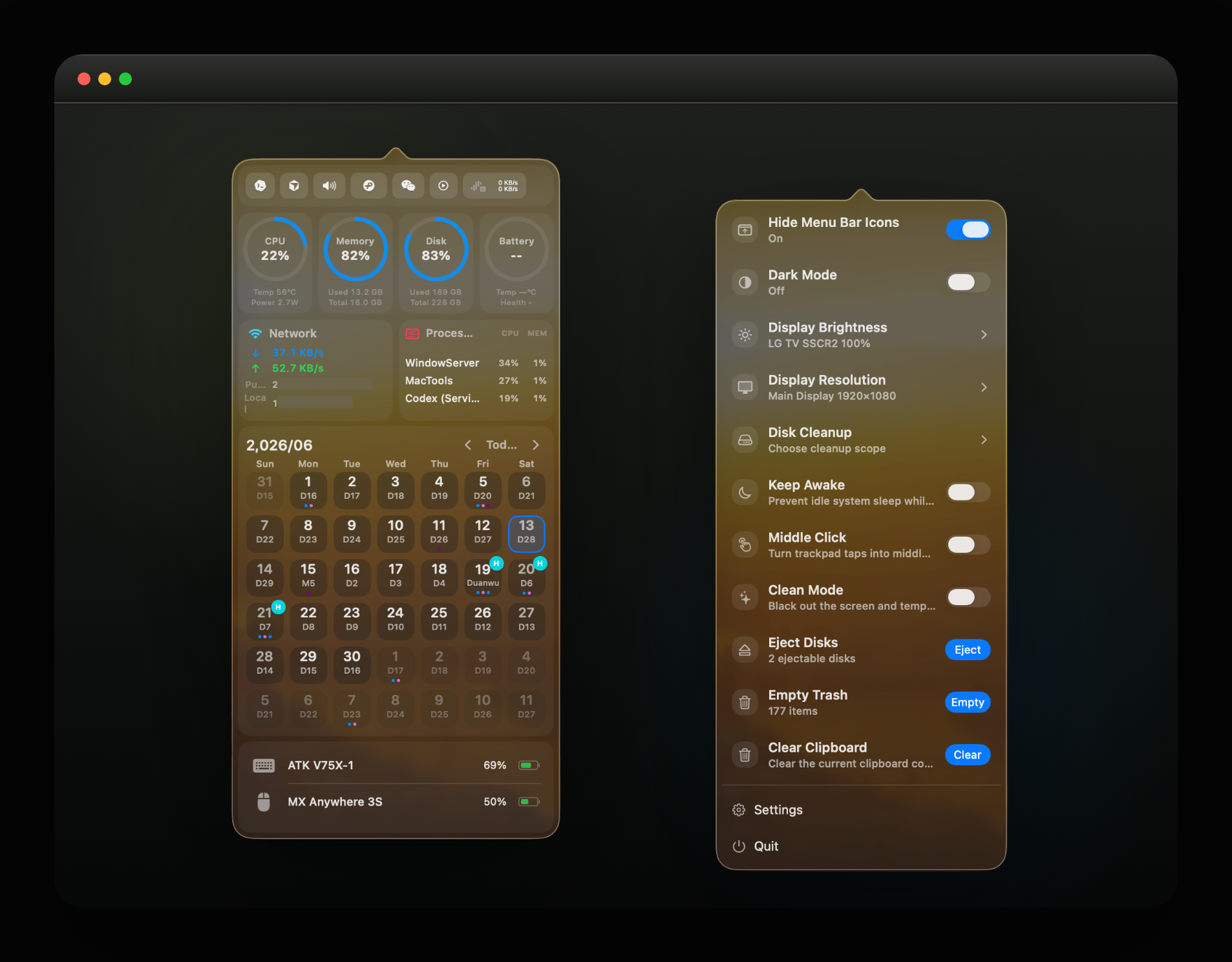
MacTools brings frequently used system actions together in a lightweight, fast, and unobtrusive menu bar app. Built with SwiftUI + AppKit for macOS 14.0 and later.
Screenshots
Features
| Feature | Description |
|---|---|
| Display Resolution | View connected displays and switch each display to an available resolution, with an adaptive list that remains usable near screen edges. |
| Sidecar | View connected and nearby Sidecar-compatible displays, use direct connect, switch, or disconnect actions, prioritize devices for a first-available shortcut, and keep per-display connection policies and shortcuts, including wired-only connections that request a wired transport rather than a Wi-Fi fallback. |
| Display Brightness | Quickly adjust built-in and DDC/CI external display brightness, with shortcuts that can follow the mouse or control all displays together, plus Gamma/Shade fallbacks. |
| True Tone | Automatically adapt display colors to ambient light on MacBooks and compatible displays. |
| Display Sleep | Put all displays to sleep immediately, then wake them with mouse movement or keyboard input. |
| Dark Mode | Toggle the system light and dark appearances, with live state sync when the system theme changes. |
| Night Shift | Toggle Night Shift to reduce blue light and warm the screen colors at night. |
| Prevent Sleep | Keep the system awake while idle, optionally keep the display on, or configure a Mac laptop to stay awake with its lid closed whenever power is connected. An experimental built-in virtual display appears only while the lid is closed and keeps screen-dependent tools such as Codex Computer Use, desktop automation, screen sharing, and remote control working without external display hardware. Stop automatically after 30 minutes, 1 hour, 2 hours, or 5 hours. |
| Clean Mode | Show a full-screen black overlay and temporarily disable input for cleaning the screen, keyboard, or trackpad. |
| Mouse Enhancer | Enhance mouse and trackpad controls, with separate horizontal and vertical scroll reversing plus trackpad-tap middle-click simulation. |
| Hide Notch | Mask the top notch area on built-in notch displays without modifying the original wallpaper. |
| Hide Menu Bar Icons | Hide icons to the left of a menu bar divider, with drag-based layout for visible, hidden, and always-hidden areas. |
| Auto Hide Menu Bar | Automatically hide the menu bar to make more screen space available. |
| Auto Hide Dock | Automatically hide the Dock for a cleaner desktop. |
| Stage Manager | Toggle Stage Manager to focus the current window and place other windows on the side. |
| System Mute | Mute or restore system audio output through CoreAudio on the default output device, with automatic restoration when the plugin is disabled. |
| Microphone Mute | Mute or restore the default microphone input through CoreAudio without requesting recording permission. |
| App Volume | On macOS 15 and later, adjust the volume of each app currently playing audio and keep preferences locally per app; first use requires System Audio Recording permission. |
| Disk Cleanup | Scan system caches, developer artifacts (node_modules, build outputs), and leftover installers; move to Trash by default, with path safety checks, Full Disk Access guidance, and sensitive-data protection before deletion. |
| Xcode Cleanup | Scan DerivedData, device support files, archives, simulators, and preview caches by category; deletion is disabled while Xcode is running and only runs inside allowlisted roots. |
| Eject Disks | Detect visible ejectable mounts when the panel opens, including external drives, disk images, and network volumes; multiple volumes on one device are ejected once. |
| Empty Trash | Show the number of Trash items and empty Trash through Finder; the action is disabled when Trash is empty. |
| Clear Clipboard | Clear the current clipboard content to protect privacy and avoid accidental paste. |
| IP Check | Refresh local and public IPv4 addresses when its Feature Panel or settings page opens, double-click either address to copy it, and inspect domestic/international egress, location, ISP, ASN, and macOS network quality details. |
| Translator | Translate the currently selected text with a global shortcut; the first version supports OpenAI-compatible services, automatic language selection, and a source editor whose actions stay clear of multi-line text. |
| Window Switcher | Replace or customize the window-switching shortcut with direct cycling or a fixed key-selection window for running windows; click a key hint to record a stable letter, digit, or Command-key binding. |
| App Shortcuts | Bind global shortcuts to common apps; pressing a shortcut opens or activates the app, and hides it if it is already frontmost. |
| Auto Input | Remember the last input source used in each app, restore it when returning, and optionally assign fixed input sources. |
| Launchpad | Summon an app grid in fullscreen or a compact window, with instant search, horizontal paging, keyboard navigation, drag-to-stack folders with inline rename (click an open folder's title, or right-click a folder to rename/dissolve), an adjustable glass background (clear/standard/deep presets or a custom material + dimming, with a live preview in settings), adjustable appearance (icon size 48–96 pt with rows/columns adapting, optional icons-only mode that hides app names, label appearance presets (color: automatic/light/dark/accent, weight, and a size tier that scales with the icon — shared by app names and the open-folder title), and a compact-window size slider — the compact panel now scales with the screen instead of capping at 960×680, so any display whose usable area exceeds ~1333×829 pt renders a larger panel than before, including modern built-in laptop screens (~13% on a 14″ MacBook Pro); all previewed live by a layout thumbnail in settings that mirrors the real grid math), a global shortcut, and IME-composition safety. |
| Finder Right Click | Add Finder context menu actions: new folder, new file (.txt / .md / .json), open in Terminal, open with a configurable app list, copy selected item names, and copy absolute / relative / shell-escaped paths / file:// URLs for selected items or the current folder when clicking the background — each item toggleable in Settings. |
| Lock Screen | Lock the screen immediately, equivalent to Cmd+Ctrl+Q. |
| Launch Items | Browse LaunchAgent/LaunchDaemon entries with search, field explanations, and user-level enable/disable controls. |
| Calendar Widget | View a monthly calendar, lunar calendar data, holidays, and today's events in the component panel. |
| System Status | Show 1-hour charts for CPU, GPU, memory, disk, network, battery, and high-usage processes. |
| Activity Stats | Track keyboard, mouse, scroll, and foreground app usage, with install/update and uninstall actions for Claude Code, Cursor, and Codex activity hooks. |
| Device Battery | Aggregate battery levels for the Mac, trusted iPhone/iPad/Apple Watch devices over USB or Wi-Fi, Bluetooth peripherals, AirPods/Beats split batteries and charging state, and Rapoo VT series mice, with multiple widget layouts and optional low-battery notifications. Background sampling pauses when the widget is hidden unless notifications are enabled. |
| Fan Control | Manage fan speed presets with automatic, full-speed, and custom fixed-RPM modes; installs the bundled helper and requests administrator authorization on first control. |
| Battery Charge Limit | Limit battery charging to a chosen cap, defaulting to 80%; charging stops at the cap and does not automatically resume below it unless the user chooses to continue or force discharge. |
| Fix Damaged Apps | Remove quarantine attributes to resolve "damaged and can't be opened" prompts by selecting a .app in a file panel and running the fix with administrator privileges. |
| Quit Apps | Select and quit running apps, or quit all at once; multiple instances of the same app are grouped into one stable entry, and reverse selection helps quickly choose the target set. |
| zsh Config | View and edit zsh configuration files such as .zshrc and .zshenv inside the app, with syntax highlighting, common snippets, and automatic backup before saving. |
| Plugins & Settings | Press ⌘K from a MacTools surface, or use the Plugins sidebar search launcher, to open one global palette for app navigation, General settings, plugin pages, individual plugin settings, and explicitly supported commands; use ↑/↓ and Return or the physical ⌘1–⌘9 number-row shortcuts for the first nine visible results, while VoiceOver announcements and deep links take you directly to the chosen setting or plugin row. Switch between feature and component panels from the centered menu-bar toolbar or with ⌘1/⌘2, dismiss a menu-bar panel with Esc, and open or focus Settings from an active MacTools surface with ⌘,. Jump among General, Plugins, and About in Settings with ⌘1/⌘2/⌘3, move between visible Plugins subpages with ⌃⌘↑/⌃⌘↓, and press ⌘F to focus contextual search in the Marketplace, including installed plugins. Plugin settings use an always-visible native resizable sidebar with focused ↑/↓ navigation; the Settings window keeps a consistent width across pages and a usable minimum size, and its Back/Forward toolbar controls (⌘[/⌘]) restore the exact Plugins subpage. Install, update, batch-update, and uninstall plugins in the Marketplace (filter by category/search; sort by not-installed first, installed first, or name using the selected app language). Dashboard and Feature Panel independently control which supported plugins appear there and their order. Double-click a button or switch row subtitle to copy it without invoking the primary control. Use a row’s icon to open settings, its eye control to show or hide it on that surface, and its contextual menu to view the Marketplace entry or uninstall without leaving the layout; manage permissions, plugin-specific settings, and global shortcuts—including standalone F1-F12 function keys plus optional shortcuts to open Settings, toggle Dashboard, or toggle Feature Panel—and export/import portable app preferences, plugin layout orders and visibility, and shortcut customizations as JSON. |
| Menu Bar Icon Customization | Use local images or lightweight GIF/MP4 animations as the menu bar icon, choose static or animated icons from the online gallery with clear animation badges, preserve original colors and transparency on local import, automatically adapt monochrome gallery icons to the menu bar appearance, restore the default icon, and preview every source with the same standard icon height and content inset as the default. |
| Localization | Follow the system language by default, or choose a fixed app language in Settings > General > Appearance; the picker shows each language in the system language and its native spelling, while menu-bar action buttons adapt to localized label lengths. |
Preferences backup: Import restores portable host preferences, plugin display settings, shortcut customizations, and supported plugin settings (including Sidecar device priority and shortcut configuration). Permissions, caches, credentials, and other non-portable data are excluded. Missing plugins are never installed automatically: the preview lets you explicitly select catalog-verified plugins to install, while unavailable or unselected plugins and their settings are skipped.
Right-click action: You can use Option + left-click on the MacTools icon to trigger the right-click action.
Supported Languages
MacTools supports Simplified Chinese, Traditional Chinese, English, Spanish, French, Russian, Portuguese, German, Japanese, Korean, and Arabic.
Install
brew install --cask mactoolsUpgrade
brew update
brew upgrade --cask --greedy mactools
MacTools quietly checks for app updates once per day. When an update is available, the menu-bar panel shows an Update button beside Settings; selecting it opens About and starts the standard Sparkle update flow.
The in-app update dialog separates App Updates from Plugin Updates and includes plugin releases published since the previous app version.
If Homebrew still reports that the cask is already up to date, check the locally resolved cask version first:
brew info --cask mactoolsContributing
See CONTRIBUTING.md for development setup, testing, plugin development, and release workflows.
License
MacTools is open source under the Apache License 2.0.
Privacy
MacTools is local-first and includes no maintainer-operated analytics or advertising. See the bilingual Privacy Policy for details about local data, permissions, and network-dependent features.
Acknowledgements
-
Third-party assets, dependencies, and implementation references are listed in Sources/Resources/ThirdPartyNotices.
-
Contributors