
Hydra

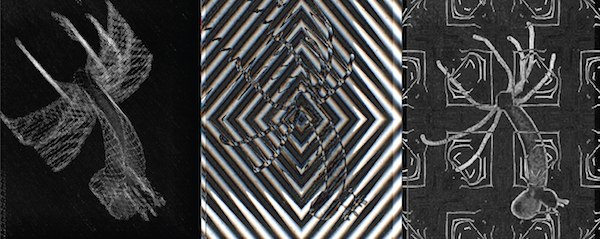
一套用于实时编码网络视觉的工具。受模拟模块化合成器的启发,这些工具探索了通过 Web 流媒体在实时环境中路由视频源和输出的方法。
Hydra 使用多个帧缓冲区,以允许在连接的浏览器视觉流之间进行动态混合、合成和协作。可以通过链式函数对每个输出应用坐标和颜色变换。
注意:实验性/开发中。目前仅在支持 WebGL 的机器上的 Chrome 或 Chromium 上运行。 我也欢迎在 issues 部分提交 pull requests 以及评论、想法和 bug =]
更多信息,请参阅 入门指南、西班牙语入门指南 PDF、教程和示例、完整函数列表、用户生成的草图画廊,或 关于创建 hydra 动机的演讲。
注意:此仓库用于 hydra 的在线版本。hydra 的其他部分作为独立模块发布:
- hydra-synth: 作为独立 npm 模块的 hydra 合成引擎
- atom-hydra: 在 atom 中使用 hydra
- rtc-patch-bay: 作为独立 npm 模块的 hydra 网络逻辑
入门指南
- CTRL-Enter: 运行一行代码
- CTRL-Shift-Enter: 运行屏幕上所有代码
- ALT-Enter: 运行一个代码块
- CTRL-Shift-H: 隐藏或显示代码
- CTRL-Shift-F: 使用 Prettier 格式化代码
- CTRL-Shift-S: 保存截图并下载为本地文件
- CTRL-Shift-G: 分享到 twitter (如果可用)。分享到 @hydra_patterns
所有代码都可以从浏览器内的文本编辑器或浏览器控制台中运行。
查看 @hydra_patterns 了解大家分享的图案,这是一种简单的入门方式。
基本函数
渲染一个具有频率、同步和 rgb 偏移参数的振荡器:
osc(20, 0.1, 0.8).out()将振荡器旋转 0.8 弧度:
osc(20, 0.1, 0.8).rotate(0.8).out()像素化上述函数的输出:
osc(20, 0.1, 0.8).rotate(0.8).pixelate(20, 30).out()显示网络摄像头输出:
s0.initCam() // initialize a webcam in source buffer s0
src(s0).out() // render source buffer s0
如果连接了多个摄像头,可以使用索引选择摄像头:
s0.initCam(1) // initialize a webcam in source buffer s0网络摄像头万花筒:
s0.initCam() // initialize a webcam in source buffer s0
src(s0).kaleid(4).out() // render the webcam to a kaleidoscope
您还可以将多个源组合在一起:
osc(10)
  .rotate(0.5)
  .diff(osc(200))
  .out()
默认情况下,环境包含四个独立的输出缓冲区,每个缓冲区可以渲染不同的图形。 输出通过变量 o0, o1, o2 和 o3 访问。
渲染到输出缓冲区 o1:
osc().out(o1)
render(o1) // render the contents of o1
如果在 out() 中未指定输出,图形将渲染到缓冲区 o0。 同时显示所有渲染缓冲区:
render()然后可以混合和合成这些输出缓冲区,以生成屏幕上显示的内容。
s0.initCam() // initialize a webcam in source buffer s0
src(s0).out(o0) // set the source of o0 to render the buffer containing the webcam
osc(10, 0.2, 0.8).diff(o0).out(o1) // initialize a gradient in output buffer o1, composite with the contents of o0
render(o1) // render o1 to the screen
合成函数 blend(), diff(), mult() 和 add() 执行算术运算,将输入纹理颜色与基础纹理颜色结合,类似于 photoshop 混合模式。
modulate(texture, amount) 使用输入纹理的红色和绿色通道来修改基础纹理的 x 和 y 坐标。有关调制的更多信息,请访问:https://lumen-app.com/guide/modulation/
osc(21, 0).modulate(o1).out(o0)
osc(40).rotate(1.57).out(o1)
使用视频作为源:
s0.initVideo("https://media.giphy.com/media/AS9LIFttYzkc0/giphy.mp4")
src(s0).out()
使用图像作为源:
s0.initImage("https://upload.wikimedia.org/wikipedia/commons/2/25/Hydra-Foto.jpg")
src(s0).out()
将函数作为变量传递
每个参数都可以定义为函数,而不是静态变量。例如,
osc(function(){return 100 * Math.sin(time * 0.1)}).out()将振荡器频率修改为时间的函数。(Time 是一个全局变量,表示自加载页面以来经过的毫秒数)。使用 es6 语法可以更简洁地编写:
osc(() => (100 * Math.sin(time * 0.1))).out()桌面捕获
打开一个对话框,选择一个屏幕标签页作为输入纹理:
s0.initScreen()
src(s0).out()
连接到远程流
任何 hydra 实例都可以使用其他包含 hydra 的实例/窗口作为输入源,只要它们连接到互联网且未被防火墙阻止。Hydra 在底层使用 webrtc(实时 web 流)在打开的窗口之间共享视频流。包含的模块 rtc-patch-bay 管理已连接窗口之间的连接,也可以作为独立模块使用,将任何网站转换为 hydra 中的源。(参见下方的独立摄像头源示例。)
首先,在两个单独的窗口中同时打开 hydra。 在其中一个窗口中,为给定的 patch-bay 源设置名称:
pb.setName("myGraphics")窗口的标题应更改为在 setName() 中输入的名称。
从另一个窗口,将 "myGraphics" 初始化为源流。
s0.initStream("myGraphics")渲染到屏幕:
s0.initStream("myGraphics")
src(s0).out()
连接有时需要几秒钟才能建立;打开浏览器控制台以查看进度。 要列出可用源,请在控制台中输入以下内容:
pb.list()使用 p5.js 与 hydra
// Initialize a new p5 instance It is only necessary to call this once
p5 = new P5() // {width: window.innerWidth, height:window.innerHeight, mode: 'P2D'}

// draw a rectangle at point 300, 100
p5.rect(300, 100, 100, 100)

// Note that P5 runs in instance mode, so all functions need to start with the variable where P5 was initialized (in this case p5)
// reference for P5: https://P5js.org/reference/
// explanation of instance mode: https://github.com/processing/P5.js/wiki/Global-and-instance-mode

// When live coding, the "setup()" function of P5.js has basically no use; anything that you would have called in setup you can just call outside of any function.

p5.clear()

for(var i = 0; i < 100; i++){
  p5.fill(i*10, i%30, 255)
  p5.rect(i*20, 200, 10,200)
}

// To live code animations, you can redefine the draw function of P5 as follows:
// (a rectangle that follows the mouse)
p5.draw = () => {
  p5.fill(p5.mouseX/5, p5.mouseY/5, 255, 100)
  p5.rect(p5.mouseX, p5.mouseY, 30, 150)
}

// To use P5 as an input to hydra, simply use the canvas as a source:
s0.init({src: p5.canvas})

// Then render the canvas
src(s0).repeat().out()
加载外部脚本
await loadScript() 函数允许你在 hydra 编辑器中加载其他打包的 javascript 库。任何 javascript 代码都可以在 hydra 编辑器中运行。
以下是使用 web 编辑器中 Three.js 的示例:
await loadScript("https://threejs.org/build/three.js")

scene = new THREE.Scene()
camera = new THREE.PerspectiveCamera(75, window.innerWidth / window.innerHeight, 0.1, 1000)

renderer = new THREE.WebGLRenderer()
renderer.setSize(width, height)
geometry = new THREE.BoxGeometry()
material = new THREE.MeshBasicMaterial({color: 0x00ff00})
cube = new THREE.Mesh(geometry, material);
scene.add(cube)
camera.position.z = 1.5

// 'update' is a reserved function that will be run every time the main hydra rendering context is updated
update = () => {
  cube.rotation.x += 0.01;
  cube.rotation.y += 0.01;
  renderer.render( scene, camera );
}

s0.init({ src: renderer.domElement })

src(s0).repeat().out()
以下是加载 Tone.js 库的示例:
await loadScript("https://unpkg.com/tone")

synth = new Tone.Synth().toDestination();
synth.triggerAttackRelease("C4", "8n");
本地运行
要在本地运行,你必须已安装 nodejs。请从以下地址安装 node 和 npm:https://nodejs.org/en/。
要运行,请打开终端并进入 hydra 源代码目录:
cd hydra
安装依赖项:
npm install
运行开发环境
npm dev
从开发/本地编辑器环境连接到服务器
此仓库仅包含 hydra 编辑器前端。你可以连接到一个后端服务器(https://github.com/hydra-synth/hydra-server)以实现信令和画廊功能。为此,请按照上述步骤设置 hydra-server。然后在 hydra 目录的根目录下创建一个 .env 文件。在 .env 文件中添加一行,将你的服务器 url 设置为:
VITE_SERVER_URL=http://localhost:8000
(将 http://localhost:8000 替换为你的服务器 url)
音频响应性
FFT 功能可通过通过 "a" 访问的音频对象使用。编辑器使用 https://github.com/meyda/meyda 进行音频分析。 要显示 fft 频段,
a.show()
设置 fft 频段数量:
a.setBins(6)
访问最左侧(最低频率)频段的值:
a.fft[0]
使用该值控制一个变量:
osc(10, 0, () => (a.fft[0]*4))
  .out()
可以通过更改检测到的最小值和最大值来校准响应性。(由 fft 上的模糊线表示)。要设置检测到的最小值:
a.setCutoff(4)
设置缩放会改变检测的范围。
a.setScale(2)
fft[] 将返回 0 到 1 之间的值,其中 0 代表截止值,1 对应最大值。
您可以在音频电平读数之间设置平滑度(0 到 1 之间的值)。0 对应无平滑(更跳跃,反应时间更快),而 1 意味着值永远不会改变。
a.setSmooth(0.8)
要隐藏音频波形:
a.hide()
MIDI (experimental)
MIDI 控制器可以通过 WebMIDI 与 Hydra 配合使用,一个示例工作流位于 /docs/midi.md 。
API
更新后的函数列表位于 /docs/funcs.md。
以及 hydra-synth 的源代码。
CHANGELOG
请参阅 CHANGELOG.md 了解最近的更改。
使用的库和工具:
- Regl: functional webgl
- glitch.io:用于沙盒信令服务器的托管
- codemirror:基于浏览器的文本编辑器
- simple-peer
灵感来源:
- Space-Time Dynamics in Video Feedback (1984)。视频 和 论文,由 Jim Crutchfield 撰写,关于使用模拟视频反馈来建模复杂系统。
- Satellite Arts Project (1977) - Kit Galloway and Sherrie Rabinowitz
- Sandin Image Processor
- kynd - reactive buffers experiment
相关项目:
Contributors
(改编自 p5.js)


我们认可所有类型的贡献。本项目遵循 all-contributors 规范。添加自己或为姓名添加贡献表情符号的说明见 此处。您也可以发布一个 issue 或评论,内容为:@all-contributors please add @YOUR-USERNAME for THING(S),我们友好的机器人会为您添加。